
February 11, 2026 · 8 min read
Building Autonomous Agents with OpenAI's Computer Use API: A Practical Guide
Learn to build automation agents with OpenAI's computer use API. Practical examples for form filling, multi-app workflows, and production reliability.

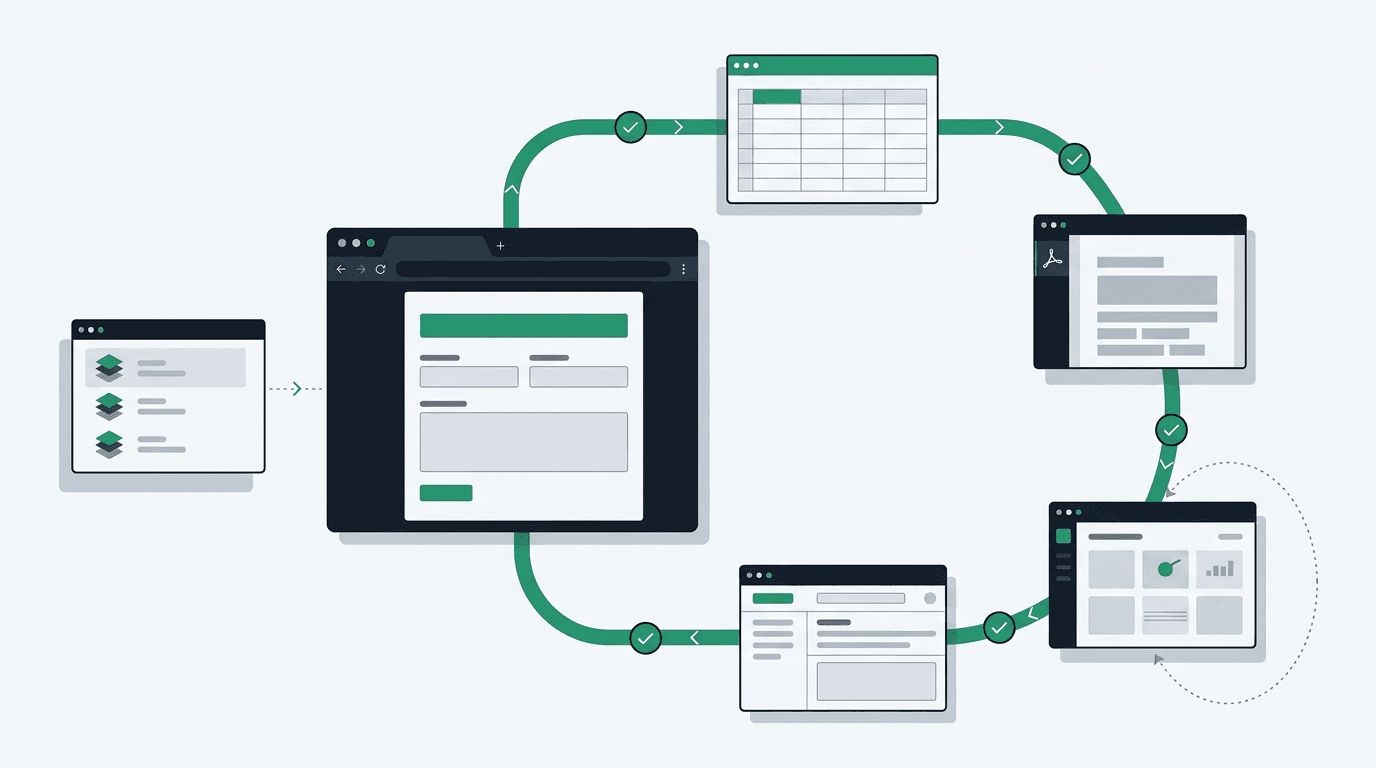
By the end of this post, you'll have an agent that fills multi-page web forms, moves data between desktop apps, and recovers from errors, all by reading screenshots and clicking. No selectors, no brittle XPaths. Here's the setup.
Setup
You'll need the OpenAI Python SDK (2.8+), Playwright for browser control, and Pillow for image handling. The computer-use flow runs through the Responses API with gpt-5.4 and the computer tool, not Chat Completions.
pip install openai>=2.8.0 pillow playwright
playwright install chromium
The action loop works like this: you send a screenshot and a goal, the model returns a computer_call, you execute the requested action, send back a computer_call_output with the updated screenshot, and repeat until the model stops asking for actions. OpenAI's computer use guide defines this protocol. You do not need to invent the orchestration yourself.
Here's the base client:
import base64
from io import BytesIO
from typing import Callable

from openai import OpenAI
from PIL import Image

client = OpenAI()

def encode_screenshot(image: Image.Image) -> str:
    buffer = BytesIO()
    image.save(buffer, format="PNG")
    return "data:image/png;base64," + base64.b64encode(buffer.getvalue()).decode("utf-8")

def run_computer_loop(
    goal: str,
    capture_screenshot: Callable[[], Image.Image],
    execute_action: Callable[[dict], None],
    max_turns: int = 30,
) -> str:
    response = client.responses.create(
        model="gpt-5.4",
        tools=[{
            "type": "computer",
            "display_width": 1600,
            "display_height": 900,
            "environment": "browser",
        }],
        input=[{
            "role": "user",
            "content": [
                {
                    "type": "input_text",
                    "text": goal,
                },
                {
                    "type": "input_image",
                    "image_url": encode_screenshot(capture_screenshot()),
                    "detail": "original",
                },
            ],
        }],
        truncation="auto",
    )

    for _ in range(max_turns):
        computer_calls = [item for item in response.output if item.type == "computer_call"]
        if not computer_calls:
            return response.output_text

        computer_outputs = []
        for call in computer_calls:
            execute_action(call.action)
            updated_screenshot = capture_screenshot()
            computer_outputs.append({
                "type": "computer_call_output",
                "call_id": call.call_id,
                "acknowledged_safety_checks": [],
                "output": {
                    "type": "computer_screenshot",
                    "image_url": encode_screenshot(updated_screenshot),
                },
            })

        response = client.responses.create(
            model="gpt-5.4",
            previous_response_id=response.id,
            input=computer_outputs,
            truncation="auto",
        )

    raise RuntimeError("computer-use loop exceeded max_turns")
OpenAI's current guidance favors detail: "original" for screenshots. If you need to downscale, use the documented 1440x900 or 1600x900 sizes instead of forcing everything to 1280x720.
Build: Form-Filling Agent
This agent fills a multi-page web form. The pattern works for CRM data entry, compliance submissions, or any workflow built around a sequence of inputs.
from io import BytesIO
import json

from PIL import Image
from playwright.sync_api import sync_playwright

from computer_use_client import run_computer_loop

def capture_screenshot(page) -> Image.Image:
    screenshot_bytes = page.screenshot()
    return Image.open(BytesIO(screenshot_bytes))

def execute_action(page, action: dict) -> None:
    if action["type"] == "click":
        page.mouse.click(action["x"], action["y"])
    elif action["type"] == "type":
        page.keyboard.type(action["text"])
    elif action["type"] == "press":
        page.keyboard.press(action["key"])
    elif action["type"] == "scroll":
        page.mouse.wheel(action["dx"], action["dy"])
    elif action["type"] == "wait":
        page.wait_for_timeout(action.get("ms", 1000))

def run_form_agent(url: str, form_data: dict):
    with sync_playwright() as p:
        browser = p.chromium.launch(headless=True)
        page = browser.new_page(viewport={"width": 1600, "height": 900})
        page.goto(url)

        goal = f"Fill out the form with this data: {json.dumps(form_data)}. Submit when complete."
        result = run_computer_loop(
            goal,
            capture_screenshot=lambda: capture_screenshot(page),
            execute_action=lambda action: execute_action(page, action),
        )
        print(result)

        browser.close()

form_data = {
    "company_name": "Corvus Tech",
    "contact_email": "hello@corvustech.ca",
    "service_type": "AI Integration",
    "budget_range": "$50,000-$100,000"
}
run_form_agent("https://example.com/contact", form_data)
The loop is straightforward: screenshot, ask the model what to do, do it, send back the result, repeat. I keep a hard ceiling on turns as a safety net.
One thing I didn't expect: the model handles field labels it's never seen before by reading them from the screenshot. Unlike selector-based automation, this survives UI redesigns without any code changes.
Build: Multi-App Workflow Agent
Real workflows span multiple apps. This agent pulls data from one desktop application and enters it into another.
import subprocess

import pyautogui
from PIL import ImageGrab

from computer_use_client import run_computer_loop

def capture_desktop() -> "Image.Image":
    return ImageGrab.grab()

def execute_desktop_action(action: dict) -> None:
    if action["type"] == "click":
        pyautogui.click(action["x"], action["y"])
    elif action["type"] == "type":
        pyautogui.write(action["text"], interval=0.02)
    elif action["type"] == "press":
        pyautogui.press(action["key"])
    elif action["type"] == "scroll":
        pyautogui.scroll(action.get("dy", 0))

def cross_app_workflow(source_app: str, dest_app: str, task: str):
    subprocess.Popen(["open", "-a", source_app])  # macOS
    subprocess.Popen(["open", "-a", dest_app])

    goal = f"""
    Task: {task}
    Source application: {source_app}
    Destination application: {dest_app}

    Steps:
    1. Switch to {source_app} and locate the required data
    2. Copy the data
    3. Switch to {dest_app} and paste/enter the data
    4. Verify the data appears correctly
    """

    return run_computer_loop(
        goal,
        capture_screenshot=capture_desktop,
        execute_action=execute_desktop_action,
    )

result = cross_app_workflow(
    source_app="Preview",
    dest_app="QuickBooks",
    task="Extract the invoice total, date, and vendor name from the open PDF and create a new bill entry"
)
Desktop automation needs Accessibility permissions on macOS (System Preferences > Privacy > Accessibility). On Windows, you'll need to run as administrator if the target app is elevated. Worth verifying this before you spend time debugging what looks like a click miss.
Making It Reliable
Two things will trip you up in production: flaky execution and context bloat.
Retry with backoff. Network hiccups, unexpected dialogs, and application crashes are all normal. Here's my standard wrapper:
import time
from typing import Callable

class AgentError(Exception):
    pass

def with_retry(
    action_fn: Callable,
    max_retries: int = 3,
    backoff_base: float = 1.0
) -> dict:
    last_error = None

    for attempt in range(max_retries):
        try:
            result = action_fn()

            if result.get("verification", {}).get("passed", True):  # highlight-line
                return result

            raise AgentError(f"Verification failed: {result['verification']['reason']}")

        except Exception as e:
            last_error = e
            wait_time = backoff_base * (2 ** attempt)
            print(f"Attempt {attempt + 1} failed: {e}. Retrying in {wait_time}s")
            time.sleep(wait_time)

    raise AgentError(f"All {max_retries} attempts failed. Last error: {last_error}")
Also add stuck detection. If the model returns the same action three times in a row, force a screenshot refresh or inject a recovery prompt asking it to try a different approach. This catches cases where an unexpected modal is blocking progress and the model keeps clicking the same coordinate.
Manage context. Screenshots are one of the biggest cost drivers in a long agent loop. Keep recent history in full and summarise the rest:
def compress_history(history: list, keep_recent: int = 10) -> list:
    if len(history) <= keep_recent:
        return history

    old_actions = history[:-keep_recent]
    summary = {
        "type": "history_summary",
        "description": f"Completed {len(old_actions)} prior actions: " +
                       ", ".join(a.get("description", a["type"]) for a in old_actions[-5:]) +
                       f" (and {len(old_actions) - 5} more)"
    }

    return [summary] + history[-keep_recent:]  # highlight-line
For workflows past 100 steps, save application state at key milestones so you can resume from the last checkpoint instead of replaying the full history.
Keeping Costs Down
Computer-use workflows get expensive fast. Three things that help:
Scale screenshots to 1440x900 or 1600x900 when you need to downscale. Better yet, prefer detail: "original" and only reduce resolution if the environment is too large to fit comfortably.
Skip screenshots between pure keyboard steps. If an action is just typing text into a field you've already focused, you don't need a fresh screenshot before the next keystroke.
Break long workflows into sub-goals. Complete one chunk, verify, then start the next with a shorter context. The planning step is cheap compared to the savings on the execution side:
def chunk_workflow(full_goal: str, chunk_size: int = 5) -> list:
    planning_response = client.chat.completions.create(
        model="gpt-5.4",
        messages=[{
            "role": "user",
            "content": f"Break this task into {chunk_size}-step chunks: {full_goal}"
        }]
    )
    return planning_response.choices[0].message.content.split("\n\n")
One more production tip: set hard step limits and wall-clock timeouts on every agent loop. Runaway agents are expensive and difficult to debug after the fact.
import signal

def timeout_handler(signum, frame):
    raise TimeoutError("Agent exceeded maximum runtime")

def run_with_timeout(agent_fn, timeout_seconds: int = 300):
    signal.signal(signal.SIGALRM, timeout_handler)
    signal.alarm(timeout_seconds)  # highlight-line
    try:
        return agent_fn()
    finally:
        signal.alarm(0)
Don't give production agents access to credentials, payment systems, or admin interfaces without a human confirmation step. Computer-use models can be manipulated by adversarial content visible on screen, and a model with full desktop control can click anything it sees.
Running in Production
I've had the invoice-processing version of this running for a week. It's processed around 200 forms with three failures, all from a third-party site swapping its CAPTCHA provider. For that kind of unstructured, UI-heavy workflow, that's a better success rate than I expected.
Start with the form-filling agent from this post. Pick a low-stakes internal workflow, get comfortable with the action loop, and build up from there. The code here is enough to get something real running in an afternoon. If you want help taking it from experiment to production, we do this kind of work.
Sources
- OpenAI Computer Use Guide: Official documentation for OpenAI's computer use loop and Responses API protocol.